Arranging windows on Mac OS X is tedious and imprecise. Even after dragging, pulling, and, re-dragging windows, you end up with inefficient use of your available screen real estate.
SizeUp will help you quickly resize and position your windows to make optimal use of your screen while saving you time and frustration.
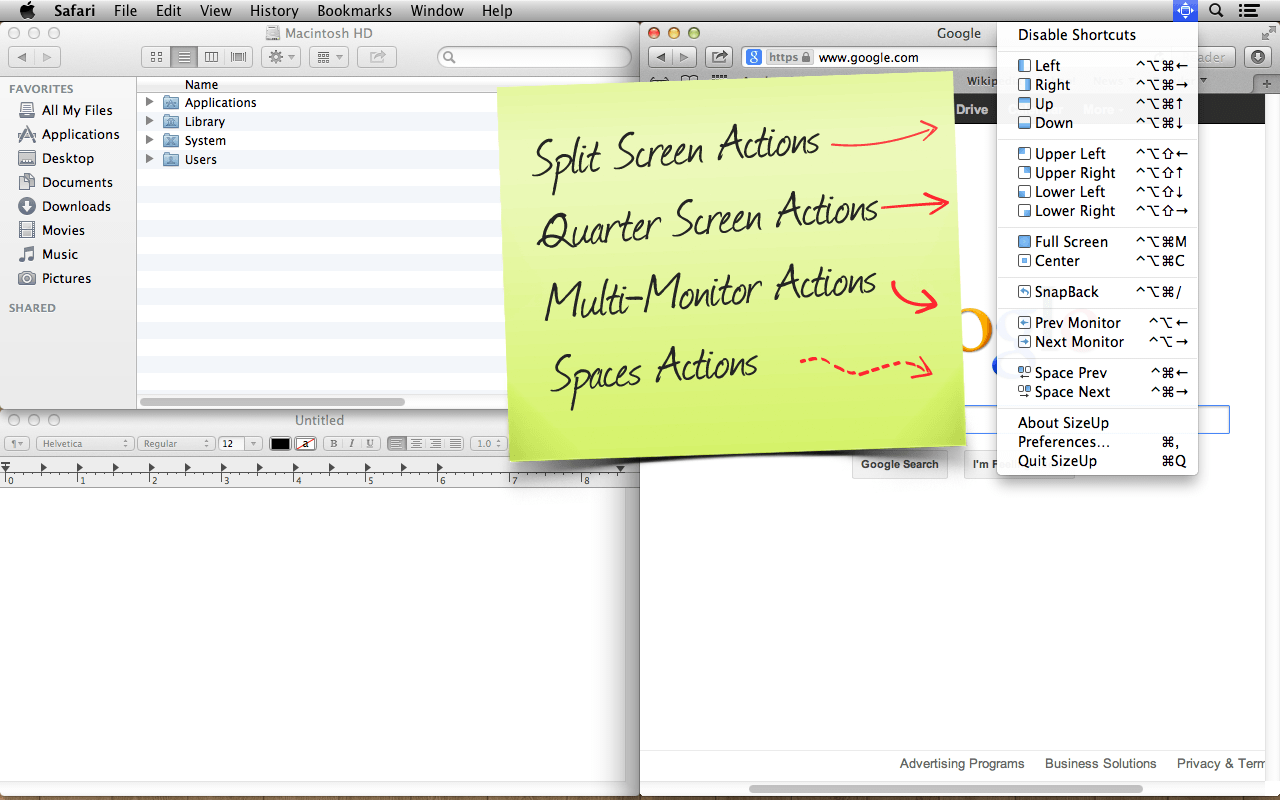
SizeUp comes with a number of pre-defined actions for resizing and/or moving the frontmost window of almost any application.
Safari, Finder, Pages, it doesn't matter, SizeUp will work its magic to help wrangle your windows into place.

Move and resize a window to fill the Left, Right, Top (Up), or Bottom (Down) half of the screen.
Great for putting two windows side by side for comparison.
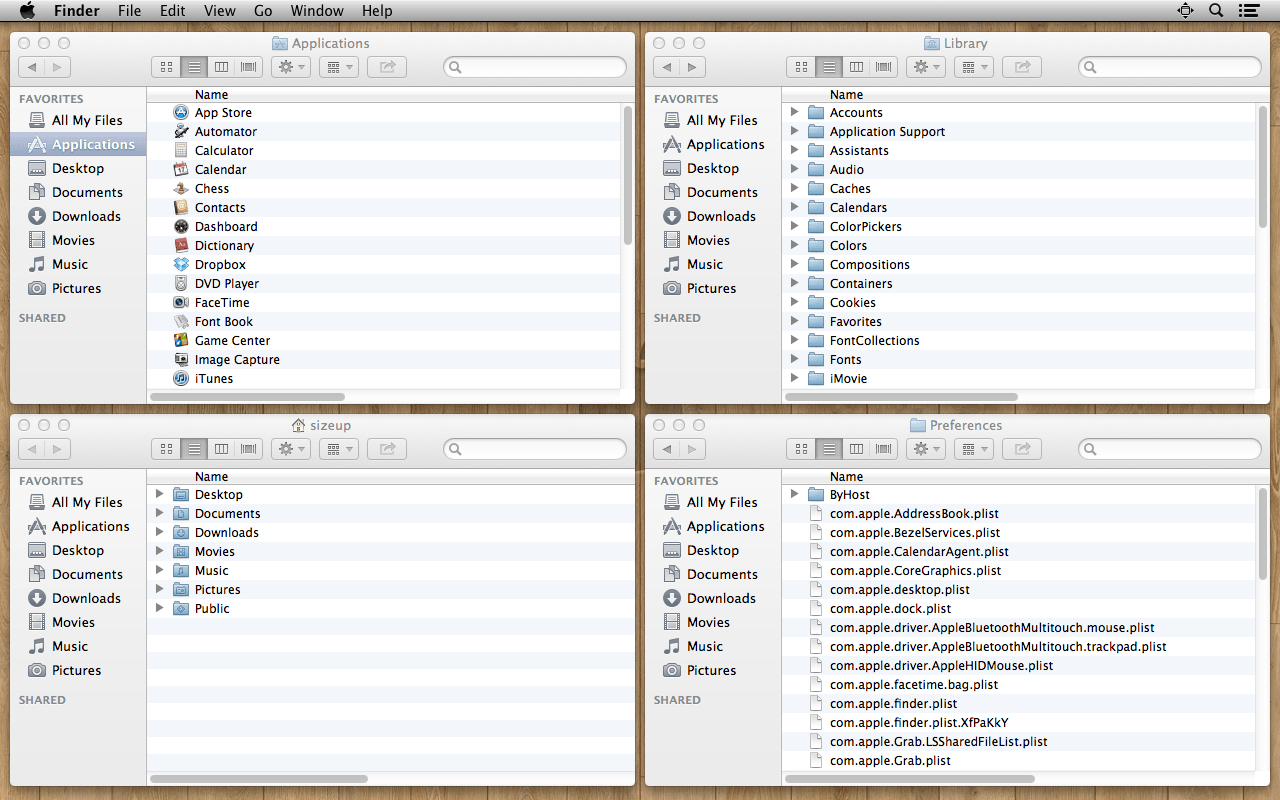
Move and resize a window to fill a quarter of the screen (quadrant).
Great for managing files in Finder.

Move a window from one monitor to another and optionally resize the window to fit.
Move a window from one Space to another.

My favorite, Full Screen maximizes a window to fill your screen, unlike that annoying green button.
SnapBack restores a window to its original size/position before SizeUp touched it.
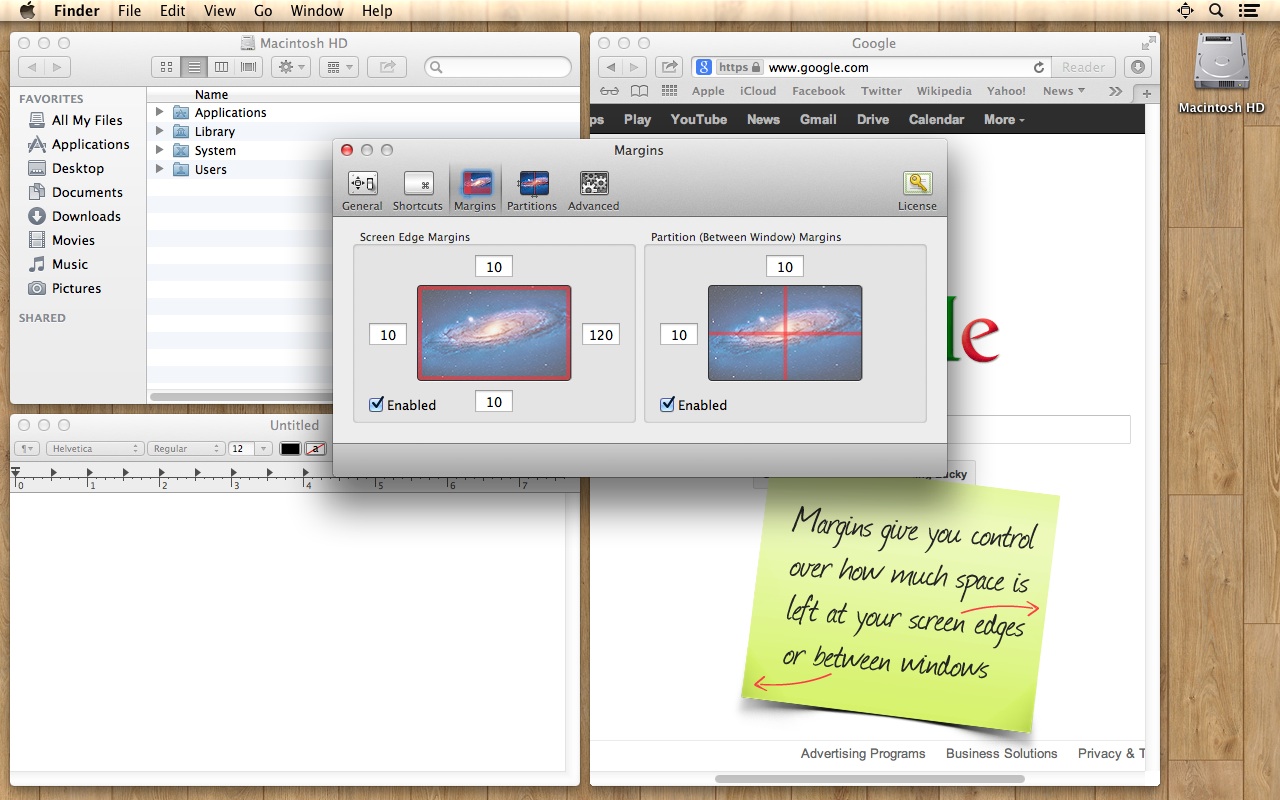
Reserve space at the edges of your screen, which is great for accessing desktop icons.
Add some distance between windows to avoid shadow overlap.

Explore SizeUp's powerful AppleScript features to create your own custom actions such as Thirds (three columns/rows), Anchors (move to the screen edge/corner without resizing), and more.

Trigger SizeUp actions in any application with user-configurable, global keyboard shortcuts.